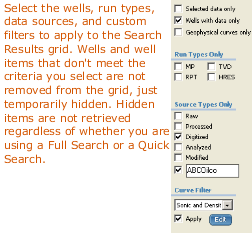
Filter both the wells and curves that appear in the Search Results grid and the actual items retrieved. Filter options, or curve constraints appear to the left of the Search Results grid. The constraints you apply limit both the curves displayed in the Search Results grid (if you used Full Search mode), and the actual curves and other items that are retrieved (if you used Quick Search mode). Save the curve constraints you specify as a custom filter.
The Custom box in the Source Types Only pane enables you to type the name of a custom source.
The UWIs displayed in the Search Results grid can be exported to either a text file with a wel extension or to the Windows Clipboard from which they can be pasted into a third-party application. For details, see Related Topics below.
To filter digital logs using curve constraints
1. With the catalog displayed, filter the rows so that only those with data appear by clicking Wells with data only in the curve constraints pane to the left of the Search Results grid.
2. Additional options with which you may want to filter the catalog are as follows:
| Data Type | Selected data only - only wells and curves with a checkmark in the selected column appear. This can be useful for transactional accounts to verify you do not incur unnecessary charges for ad hoc customers. Wells with data only - wells without data specific to the tab you are currently viewing (logs or well files) are hidden from the display. Geophysical curves only - wells with sonic, density, and gamma curves appear. |
| Run Type | MP (Main Pass - measured depth), RPT (Repeat Pass), TVD (True Vertical Depth), HRES (High Resolution). |
| Source Type |
Raw - the unmodified file as originally provided by the logging company. Most of our logs are in this format. Custom - Filter by custom sources, such as your own custom curves. Type the filter text in the box to enable the checkbox. The asterisk (*) wildcard is supported. |
| Curve Type |
Select New Custom Filter to include curve mnemonics in the Search Results grid that appear in a curve group you select. For example, the Sonic group includes DT, AC, DTCM, DTCO, DT35, and more. Companies who are licensing LOGarc can contact IHS Customer Care for information about adding other mnemonics to a LOGarc curve group. If you have created filters in the past, they can be edited by selecting the filter name from the Curve Filter drop-down list and then clicking Edit. Once ready, click Apply. |
Only wells that match the criteria specified above appear in the Search Results grid. Filtered items are not removed from the actual catalog, just hidden from the current view, and they are not retrieved from the IHS Information Hub.
To create a custom curve filter
1. With the catalog displayed, filter the rows so that only those with data appear by clicking Wells with data only in the raster constraints pane to the left of the Search Results grid.
2. Using the Curve Filter drop-down list, select New Custom Filter
OR
With a custom filter that you want to modify selected in the drop-down list, click Edit.
The Custom Filter Settings dialog box appears displaying a number of curve groups that contain various mnemonics.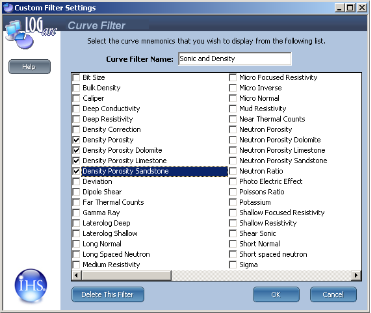
For new custom filters, type a name in the Filter Name box.
2. Select the curve group that includes the mnemonics to display in the Search Results grid, and then click OK.
Save this filter as a template to modify in the future or when you are done with it, click Delete this Filter in the bottom-left of the Curve Filter dialog box.
| Selecting Wells and Logs | Changing the Search Results Grid |
| Exporting UWIs to Well Lists or to the Clipboard |